Lot/Expiry Stock Validation in POS Implementation Guide
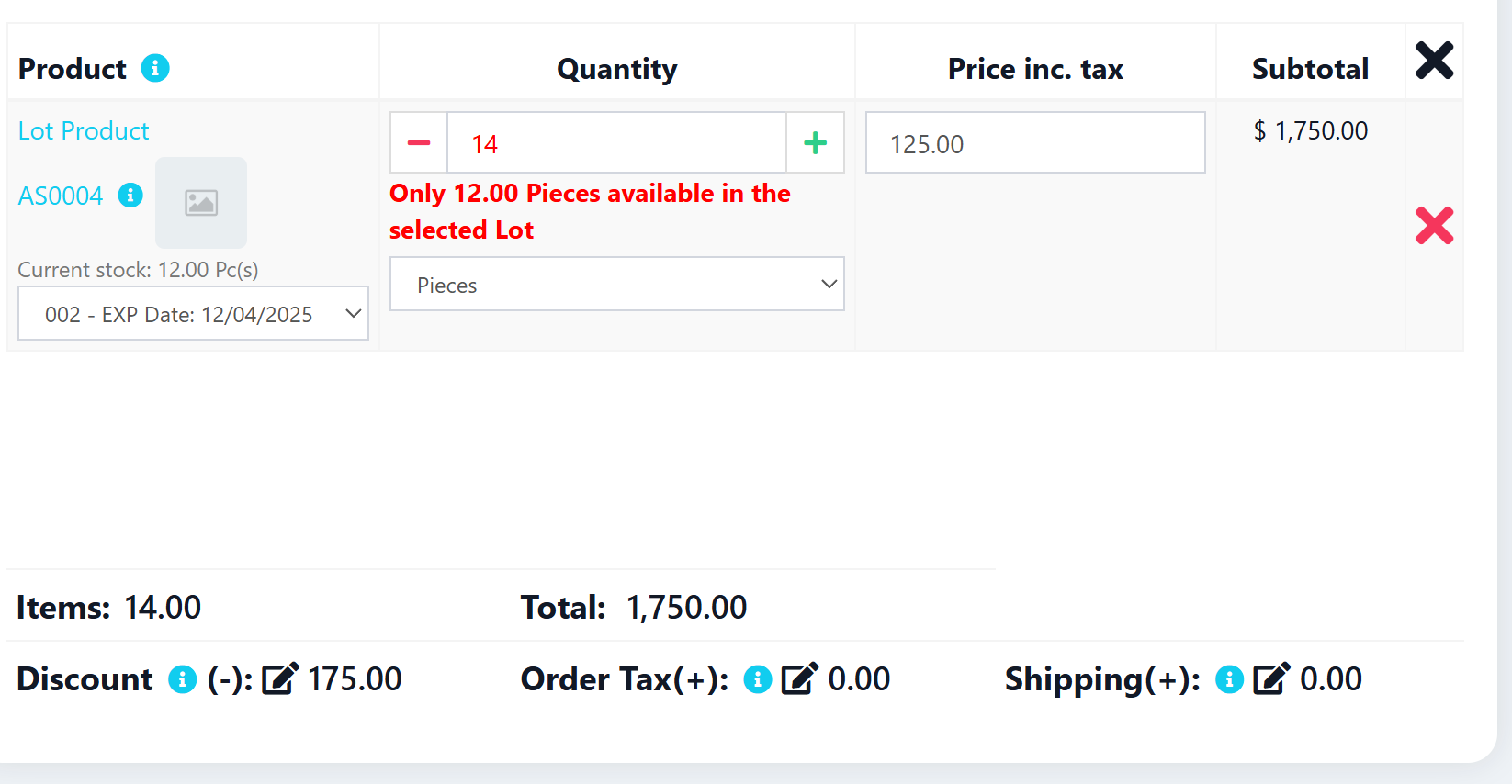
This guide shows how to add dynamic lot/expiry stock validation to the POS screen in Ultimate POS. When products with lot numbers or expiry dates are added to POS, selecting a specific lot will now dynamically update the available stock display and validate quantity against the selected lot's stock.
Download
The Problem
In Stock Transfer, when you select a lot for a product:
- The available stock updates dynamically to show that lot's quantity
- Validation prevents entering more than available in that lot
- Visual feedback shows "Current Stock: X" that updates on lot selection
However, in POS this feature was missing - the stock display was static and didn't update when selecting different lots.
The Solution
This implementation adds the same lot stock validation behavior to POS that already exists in Stock Transfer:
- Dynamic stock display that updates when lot is selected
- Real-time validation against selected lot's available quantity
- Stock display updates when changing sub-units
- Visual feedback with "Current Stock: X" label
Implementation Tree Structure
your-laravel-project/
├── public/
│   └── js/
│       └── pos.js                                      # 📝 MODIFY
└── resources/
    └── views/
        └── sale_pos/
            └── product_row.blade.php                   # 📝 MODIFY
Files Overview
| File | Action | Description |
|---|---|---|
product_row.blade.php | 📝 Modify | Add dynamic stock display span with qty_available_text |
pos.js | 📝 Modify | Update lot change handler and sub_unit change handler |
Features
- ✅ Dynamic stock display updates when selecting lots
- ✅ Real-time quantity validation per lot
- ✅ Sub-unit changes update stock display correctly
- ✅ Shows "Current Stock: X" label like Stock Transfer
- ✅ Error message when quantity exceeds lot stock
- ✅ Works with both POS and Direct Sell screens
Prerequisites
- Ultimate POS with lot number/expiry date feature enabled
- Products with lot numbers configured
- Existing POS functionality working
Implementation Steps
Step 1: Update POS Product Row Template
Update your resources/views/sale_pos/product_row.blade.php file to add the dynamic stock display.
Find this section (around line 117):
<small class="text-muted p-1">
    @if($product->enable_stock)
    {{ @num_format($product->qty_available) }} {{$product->unit}} @lang('lang_v1.in_stock')
    @else
        --
    @endif
</small>
Replace with:
<small class="text-muted p-1" style="white-space: nowrap;">
    @if($product->enable_stock)
    @lang('report.current_stock'): <span class="qty_available_text">{{ @num_format($product->qty_available) }}</span> {{$product->unit}}
    @else
        --
    @endif
</small>
Key changes:
- Added
qty_available_textspan class for dynamic updates via JavaScript - Changed label to use
@lang('report.current_stock')for consistency with Stock Transfer - Added
white-space: nowrapto prevent text wrapping
Step 2: Update Lot Number Change Handler in pos.js
Update the lot number change handler in public/js/pos.js to update the stock display.
Find this section (around line 416):
//Change max quantity rule if lot number changes
$('table#pos_table tbody').on('change', 'select.lot_number', function () {
    var qty_element = $(this)
        .closest('tr')
        .find('input.pos_quantity');

    var tr = $(this).closest('tr');
    var multiplier = 1;
    // ... rest of the code
Replace the entire lot_number change handler with:
//Change max quantity rule if lot number changes
$('table#pos_table tbody').on('change', 'select.lot_number', function () {
    var qty_element = $(this)
        .closest('tr')
        .find('input.pos_quantity');

    var tr = $(this).closest('tr');
    var qty_available_el = tr.find('.qty_available_text');
    var multiplier = 1;
    var unit_name = '';
    var sub_unit_length = tr.find('select.sub_unit').length;
    if (sub_unit_length > 0) {
        var select = tr.find('select.sub_unit');
        multiplier = parseFloat(select.find(':selected').data('multiplier'));
        unit_name = select.find(':selected').data('unit_name');
    }
    var allow_overselling = qty_element.data('allow-overselling');
    if ($(this).val() && !allow_overselling) {
        var lot_qty = $('option:selected', $(this)).data('qty_available');
        var max_err_msg = $('option:selected', $(this)).data('msg-max');

        if (sub_unit_length > 0) {
            lot_qty = lot_qty / multiplier;
            var lot_qty_formated = __number_f(lot_qty, false);
            max_err_msg = __translate('lot_max_qty_error', {
                max_val: lot_qty_formated,
                unit_name: unit_name,
            });
        }

        qty_element.attr('data-rule-max-value', lot_qty);
        qty_element.attr('data-msg-max-value', max_err_msg);

        qty_element.rules('add', {
            'max-value': lot_qty,
            messages: {
                'max-value': max_err_msg,
            },
        });

        // Update the stock display text with lot quantity
        if (qty_available_el.length) {
            qty_available_el.text(__currency_trans_from_en(lot_qty, false));
        }
    } else {
        var default_qty = qty_element.data('qty_available');
        var default_err_msg = qty_element.data('msg_max_default');
        if (sub_unit_length > 0) {
            default_qty = default_qty / multiplier;
            var lot_qty_formated = __number_f(default_qty, false);
            default_err_msg = __translate('pos_max_qty_error', {
                max_val: lot_qty_formated,
                unit_name: unit_name,
            });
        }

        qty_element.attr('data-rule-max-value', default_qty);
        qty_element.attr('data-msg-max-value', default_err_msg);

        qty_element.rules('add', {
            'max-value': default_qty,
            messages: {
                'max-value': default_err_msg,
            },
        });

        // Reset the stock display text to default quantity
        if (qty_available_el.length) {
            qty_available_el.text(__currency_trans_from_en(default_qty, false));
        }
    }
    qty_element.trigger('change');
});
Key additions:
- Added
qty_available_elvariable to find the stock display span - Added code to update stock display when lot is selected (lines with
qty_available_el.text(...)) - Added code to reset stock display when lot selection is cleared
Step 3: Update Sub Unit Change Handler in pos.js
Update the sub_unit change handler to also update the stock display.
Find the sub_unit change handler section (around line 1406):
if (base_max_avlbl) {
    var max_avlbl = parseFloat(base_max_avlbl) / multiplier;
    var formated_max_avlbl = __number_f(max_avlbl);
    var unit_name = selected_option.data('unit_name');
    var max_err_msg = __translate(error_msg_line, {
        max_val: formated_max_avlbl,
        unit_name: unit_name,
    });
    qty_element.attr('data-rule-max-value', max_avlbl);
    qty_element.attr('data-msg-max-value', max_err_msg);
    qty_element.rules('add', {
        'max-value': max_avlbl,
        messages: {
            'max-value': max_err_msg,
        },
    });
    qty_element.trigger('change');
}
adjustComboQty(tr);
Replace with:
if (base_max_avlbl) {
    var max_avlbl = parseFloat(base_max_avlbl) / multiplier;
    var formated_max_avlbl = __number_f(max_avlbl);
    var unit_name = selected_option.data('unit_name');
    var max_err_msg = __translate(error_msg_line, {
        max_val: formated_max_avlbl,
        unit_name: unit_name,
    });
    qty_element.attr('data-rule-max-value', max_avlbl);
    qty_element.attr('data-msg-max-value', max_err_msg);
    qty_element.rules('add', {
        'max-value': max_avlbl,
        messages: {
            'max-value': max_err_msg,
        },
    });

    // Update the stock display text with available quantity
    var qty_available_el = tr.find('.qty_available_text');
    if (qty_available_el.length) {
        qty_available_el.text(__currency_trans_from_en(max_avlbl, false));
    }

    qty_element.trigger('change');
}
adjustComboQty(tr);
Key addition:
- Added code to update stock display when sub_unit changes
How It Works
- Product Added to POS: Shows total available stock for the product
- Lot Selected: Stock display updates to show only that lot's available quantity
- Quantity Validation: If user enters more than lot stock, validation error appears
- Lot Deselected: Stock display resets to total product stock
- Sub-unit Changed: Stock display updates with converted quantity
Verification Steps
After implementation, verify that:
- Add a product with lot/expiry to POS
- Check stock display shows "Current Stock: X"
- Select a lot from the dropdown
- Stock display updates to show that lot's quantity
- Enter quantity exceeding lot stock - validation error appears
- Clear lot selection - stock display resets to total
- Change sub-unit (if available) - stock display converts correctly
Comparison with Stock Transfer
| Feature | Stock Transfer | POS (Before) | POS (After) |
|---|---|---|---|
| Dynamic stock display | ✅ | ❌ | ✅ |
| Lot quantity validation | ✅ | ✅ | ✅ |
| Visual feedback on lot change | ✅ | ❌ | ✅ |
| Sub-unit stock conversion | ✅ | ❌ | ✅ |
| "Current Stock" label | ✅ | ❌ | ✅ |
Troubleshooting
Issue: Stock display not updating
Solution:
- Check that
qty_available_textspan class exists in the blade template - Verify JavaScript changes are in the correct location
- Clear browser cache and reload
Issue: Validation not working
Solution:
- Ensure
allow_oversellingis not enabled in POS settings - Check that lot options have
data-qty_availableattribute
Issue: Stock shows NaN or undefined
Solution:
- Verify lot numbers have proper
qty_availabledata attributes - Check that
__currency_trans_from_enfunction exists in common.js
Download Implementation Files
The modified files are available for download:
Conclusion
This implementation brings the POS lot/expiry stock validation to feature parity with Stock Transfer, providing users with real-time feedback on available stock per lot and preventing over-selling from specific lots.
💛 Support this project