Last Updated: October 30, 2025 Version: 2.1 Compatibility: Laravel Ultimate POS v6.8+
Product Field Visibility Settings Implementation Guide
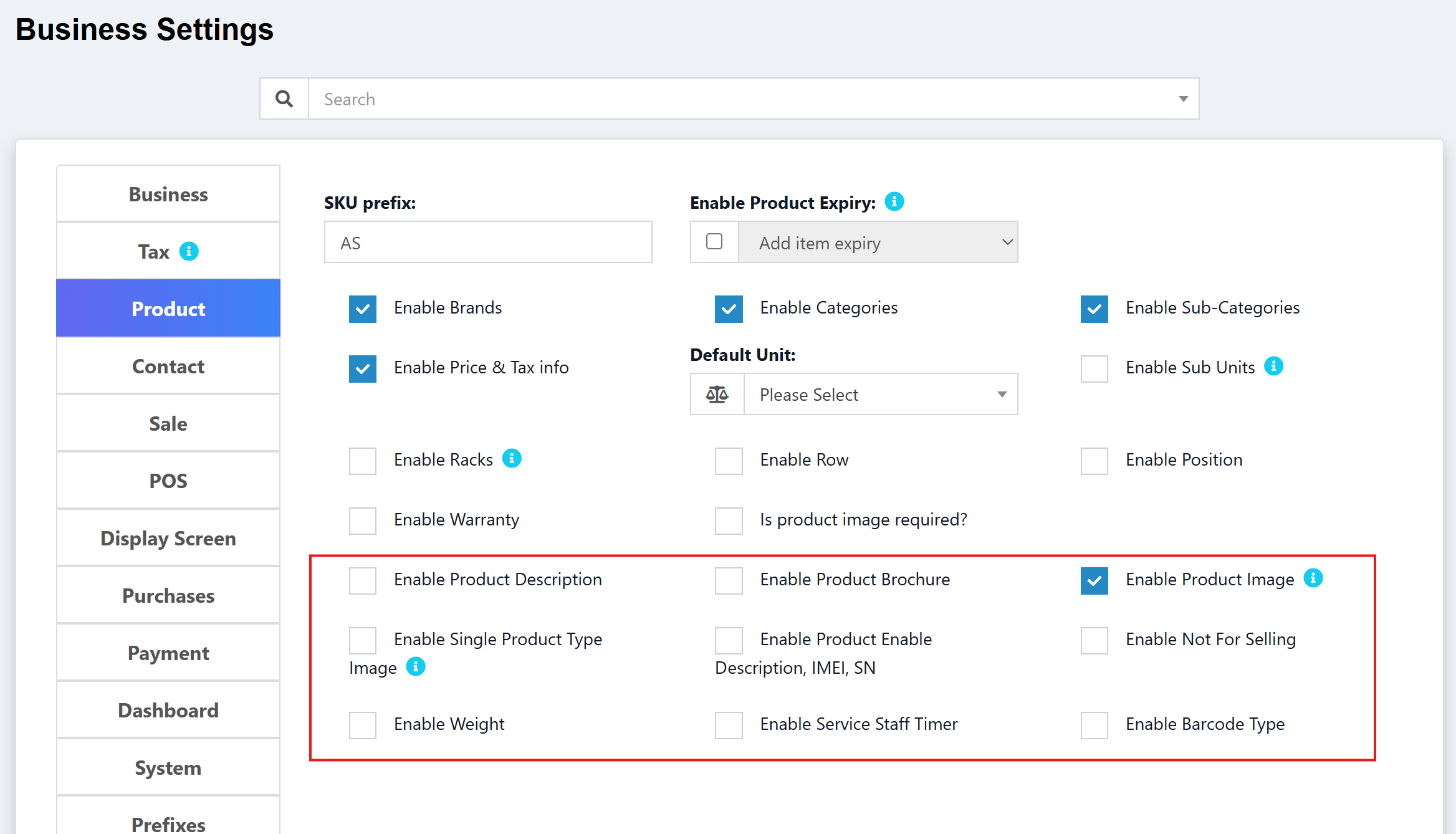
This guide will walk you through implementing configurable visibility settings for product form fields in your Laravel Ultimate POS application. This feature allows administrators to show/hide specific product fields from the business settings panel, providing a cleaner interface and better control over which fields are displayed.
📦 Download Starter Files
Download Implementation Template
📁 Complete Implementation Tree
your-laravel-app/
├── 📁 app/
│   └── 📁 Http/
│       └── 📁 Controllers/
│           └── 📄 ProductController.php ← UPDATE: Add defensive coding for weight & preparation_time_in_minutes
│
├── 📁 resources/
│   └── 📁 views/
│       ├── 📁 business/
│       │   └── 📁 partials/
│       │       └── 📄 settings_product.blade.php ← ADD: New checkbox settings
│       └── 📁 product/
│           ├── 📄 create.blade.php ← ADD: Conditional @if checks + hidden fields
│           ├── 📄 edit.blade.php ← ADD: Conditional @if checks + hidden fields
│           └── 📁 partials/
│               ├── 📄 quick_add_product.blade.php ← ADD: Conditional @if checks for modal fields
│               └── 📄 single_product_form_part.blade.php ← ADD: Conditional @if for product images
│
└── 📁 lang/
    └── 📁 en/
        └── 📄 lang_v1.php ← ADD: New translation keys
Overview
The Product Field Visibility Settings feature allows you to control which fields appear in the product create/edit forms through checkboxes in the business settings. This helps:
- Simplify the UI - Hide fields you don't use
- Reduce clutter - Show only relevant fields for your business
- Improve user experience - Faster form completion with fewer fields
- Customize per business - Different settings for different locations/businesses
🎯 Supported Field Visibility Controls
This implementation controls visibility for the following product fields:
- Product Description - Long text description field
- Product Brochure - PDF/document upload field
- Advanced Fields Group (IMEI, Weight, Not for Selling, Service Staff Timer)
- Product Image - Main product image upload field at the top of product form
- Single Product Type Image - Variation images in pricing table for single product types
- Barcode Type - Barcode type dropdown
🖼️ Understanding the Two Image Settings
These two image settings work independently to give you granular control:
| Setting | Setting Key | Controls | Location in Form | Use Case |
|---|---|---|---|---|
| Enable Product Image | enable_product_image | Main product image upload field | Top of product create/edit form | Primary product thumbnail shown in listings |
| Enable Single Product Type Image | enable_single_product_image | Variation images column | Pricing table (single_product_form_part.blade.php) | Multiple images for product variations |
Why separate settings?
- Some businesses only need one main product image (simple inventory)
- Others need detailed variation images for single products (e.g., different angles, colors)
- You can enable both, one, or neither based on your needs
🔧 Implementation Steps
1️⃣ Add Settings to Business Settings Page
First, add the checkbox options to the product settings tab in business settings.
File: resources/views/business/partials/settings_product.blade.php
Add these checkboxes after the existing product settings (around line 185):
<div class="clearfix"></div>

<!-- Product Description -->
<div class="col-sm-4">
    <div class="form-group">
        <div class="checkbox">
          <label>
            {!! Form::checkbox('common_settings[enable_product_description]', 1,
                !empty($common_settings['enable_product_description']) ? true : false,
            [ 'class' => 'input-icheck']); !!} {{ __( 'lang_v1.enable_product_description' ) }}
          </label>
        </div>
    </div>
</div>

<!-- Product Brochure -->
<div class="col-sm-4">
    <div class="form-group">
        <div class="checkbox">
          <label>
            {!! Form::checkbox('common_settings[enable_product_brochure]', 1,
                !empty($common_settings['enable_product_brochure']) ? true : false,
            [ 'class' => 'input-icheck']); !!} {{ __( 'lang_v1.enable_product_brochure' ) }}
          </label>
        </div>
    </div>
</div>

<!-- Advanced Fields (IMEI, Weight, etc) -->
<div class="col-sm-4">
    <div class="form-group">
        <div class="checkbox">
          <label>
            {!! Form::checkbox('common_settings[enable_product_advanced_fields]', 1,
                !empty($common_settings['enable_product_advanced_fields']) ? true : false,
            [ 'class' => 'input-icheck']); !!} {{ __( 'lang_v1.enable_product_advanced_fields' ) }}
          </label>
          @show_tooltip(__('lang_v1.enable_product_advanced_fields_tooltip'))
        </div>
    </div>
</div>

<!-- Product Image (Main image field) -->
<div class="col-sm-4">
    <div class="form-group">
        <div class="checkbox">
          <label>
            {!! Form::checkbox('common_settings[enable_product_image]', 1,
                !empty($common_settings['enable_product_image']) ? true : false,
            [ 'class' => 'input-icheck']); !!} {{ __( 'lang_v1.enable_product_image' ) }}
          </label>
          @show_tooltip(__('lang_v1.enable_product_image_tooltip'))
        </div>
    </div>
</div>
<div class="clearfix"></div>

<!-- Single Product Type Image (Variation images in pricing table) -->
<div class="col-sm-4">
    <div class="form-group">
        <div class="checkbox">
          <label>
            {!! Form::checkbox('common_settings[enable_single_product_image]', 1,
                !empty($common_settings['enable_single_product_image']) ? true : false,
            [ 'class' => 'input-icheck']); !!} {{ __( 'lang_v1.enable_single_product_image' ) }}
          @show_tooltip(__('lang_v1.enable_single_product_image_tooltip'))
          </label>
        </div>
    </div>
</div>

<div class="clearfix"></div>

{{-- For Enable Product description, IMEI or Serial Number --}}
<div class="col-sm-4">
    <div class="form-group">
        <div class="checkbox">
          <label>
            {!! Form::checkbox('common_settings[enable_product_enable_desc_imei_sn]', 1,
                !empty($common_settings['enable_product_enable_desc_imei_sn']) ? true : false,
            [ 'class' => 'input-icheck']); !!} {{ __( 'lang_v1.enable_product_enable_desc_imei_sn' ) }}
          </label>
        </div>
    </div>
</div>

<!-- Not for Selling -->
<div class="col-sm-4">
    <div class="form-group">
        <div class="checkbox">
          <label>
            {!! Form::checkbox('common_settings[enable_not_for_selling]', 1,
                !empty($common_settings['enable_not_for_selling']) ? true : false,
            [ 'class' => 'input-icheck']); !!} {{ __( 'lang_v1.enable_not_for_selling' ) }}
          </label>
        </div>
    </div>
</div>
<div class="clearfix"></div>

{{-- enable Weight--}}
<div class="col-sm-4">
    <div class="form-group">
        <div class="checkbox">
          <label>
            {!! Form::checkbox('common_settings[enable_weight]', 1,
                !empty($common_settings['enable_weight']) ? true : false,
            [ 'class' => 'input-icheck']); !!} {{ __( 'lang_v1.enable_weight' ) }}
          </label>
        </div>
    </div>
</div>

{{-- Service staff timer/Preparation time --}}
<div class="col-sm-4">
    <div class="form-group">
        <div class="checkbox">
          <label>
            {!! Form::checkbox('common_settings[enable_service_staff_timer]', 1,
                !empty($common_settings['enable_service_staff_timer']) ? true : false,
            [ 'class' => 'input-icheck']); !!} {{ __( 'lang_v1.enable_service_staff_timer' ) }}
          </label>
        </div>
    </div>
</div>

<!-- Barcode Type -->
<div class="col-sm-4">
    <div class="form-group">
        <div class="checkbox">
          <label>
            {!! Form::checkbox('common_settings[enable_barcode_type]', 1,
                !empty($common_settings['enable_barcode_type']) ? true : false,
            [ 'class' => 'input-icheck']); !!} {{ __( 'lang_v1.enable_barcode_type' ) }}
          </label>
        </div>
    </div>
</div>
2️⃣ Update Product Create Page
Wrap each field section with conditional checks based on the settings.
File: resources/views/product/create.blade.php
Barcode Type (around line 40):
@if (!empty($common_settings['enable_barcode_type']))
<div class="col-sm-4">
    <div class="form-group">
        {!! Form::label('barcode_type', __('product.barcode_type') . ':*') !!}
        {!! Form::select('barcode_type', $barcode_types, !empty($duplicate_product->barcode_type) ? $duplicate_product->barcode_type : $barcode_default, ['class' => 'form-control select2', 'required']); !!}
    </div>
</div>
@endif
Product Description (around line 152):
@if (!empty($common_settings['enable_product_description']))
<div class="col-sm-8 mb-5">
    <div class="form-group">
        <div class="row">
            <div class="col-sm-8 product-description-label">
                {!! Form::label('product_description', __('lang_v1.product_description') . ':') !!}
            </div>
        </div>
        {!! Form::textarea('product_description', !empty($duplicate_product->product_description) ? $duplicate_product->product_description : null, ['class' => 'form-control']); !!}
    </div>
</div>
@endif
Product Image (Main image field - around line 165):
@if (!empty($common_settings['enable_product_image']))
<div class="col-sm-4">
    <div class="form-group">
        <div class="row">
            <div class="col-sm-6 image-label">
            {!! Form::label('image', __('lang_v1.product_image') . ':') !!}
            </div>
        </div>
        {!! Form::file('image', ['id' => 'upload_image', 'accept' => 'image/*',
        'required' => $is_image_required, 'class' => 'upload-element']); !!}
        <small>
            <p class="help-block">@lang('purchase.max_file_size', ['size' => (config('constants.document_size_limit') / 1000000)]) <br> @lang('lang_v1.aspect_ratio_should_be_1_1')</p>
        </small>
    </div>
</div>
@endif
Product Brochure (around line 183):
@if (!empty($common_settings['enable_product_brochure']))
<div class="col-sm-4">
    <div class="form-group">
        {!! Form::label('product_brochure', __('lang_v1.product_brochure') . ':') !!}
        {!! Form::file('product_brochure', ['id' => 'product_brochure', 'accept' => implode(',', array_keys(config('constants.document_upload_mimes_types')))]); !!}
        <small>
            <p class="help-block">
                @lang('purchase.max_file_size', ['size' => (config('constants.document_size_limit') / 1000000)])
            </p>
        </small>
    </div>
</div>
@endif
IMEI/Serial Number (around line 226):
@if (!empty($common_settings['enable_product_enable_desc_imei_sn']))
<div class="col-sm-4">
    <div class="form-group">
        <br>
        <label>
            {!! Form::checkbox('enable_sr_no', 1, !(empty($duplicate_product)) ? $duplicate_product->enable_sr_no : false, ['class' => 'input-icheck']); !!} <strong>@lang('lang_v1.enable_imei_or_sr_no')</strong>
        </label> @show_tooltip(__('lang_v1.tooltip_sr_no'))
    </div>
</div>
@endif
Not for Selling (around line 237):
@if (!empty($common_settings['enable_not_for_selling']))
<div class="col-sm-4">
    <div class="form-group">
        <br>
        <label>
            {!! Form::checkbox('not_for_selling', 1, !(empty($duplicate_product)) ? $duplicate_product->not_for_selling : false, ['class' => 'input-icheck']); !!} <strong>@lang('lang_v1.not_for_selling')</strong>
        </label> @show_tooltip(__('lang_v1.tooltip_not_for_selling'))
    </div>
</div>
@endif
Weight (around line 280):
@if (!empty($common_settings['enable_weight']))
<div class="col-sm-4">
    <div class="form-group">
        {!! Form::label('weight', __('lang_v1.weight') . ':') !!}
        {!! Form::text('weight', !empty($duplicate_product->weight) ? $duplicate_product->weight : null, ['class' => 'form-control', 'placeholder' => __('lang_v1.weight')]); !!}
    </div>
</div>
@else
{!! Form::hidden('weight', !empty($duplicate_product->weight) ? $duplicate_product->weight : null) !!}
@endif
When the weight field is disabled, you must include a hidden input to preserve existing weight values and prevent "Undefined array key 'weight'" errors in the controller. The @else clause ensures the field value is always submitted with the form.
Service Staff Timer/Preparation Time (around line 328):
@if (!empty($common_settings['enable_service_staff_timer']))
<div class="col-sm-3">
    <div class="form-group">
        {!! Form::label('preparation_time_in_minutes', __('lang_v1.preparation_time_in_minutes') . ':') !!}
        {!! Form::number('preparation_time_in_minutes', !empty($duplicate_product->preparation_time_in_minutes) ? $duplicate_product->preparation_time_in_minutes : null, ['class' => 'form-control', 'placeholder' => __('lang_v1.preparation_time_in_minutes')]); !!}
    </div>
</div>
@endif
3️⃣ Update Product Edit Page
Apply the same conditional checks to the edit page.
File: resources/views/product/edit.blade.php
Apply the exact same @if conditionals around each corresponding field section as shown above for the create page.
Important: Weight Field in Edit Page
For the weight field in the edit page, also include the hidden field fallback:
@if (!empty($common_settings['enable_weight']))
<div class="col-sm-4">
  <div class="form-group">
    {!! Form::label('weight',  __('lang_v1.weight') . ':') !!}
    {!! Form::text('weight', $product->weight, ['class' => 'form-control', 'placeholder' => __('lang_v1.weight')]); !!}
  </div>
</div>
@else
{!! Form::hidden('weight', $product->weight) !!}
@endif
4️⃣ Update Product Modals
The visibility settings also need to be applied to product modals used throughout the application, particularly the Quick Add Product modal.
Quick Add Product Modal
File: resources/views/product/partials/quick_add_product.blade.php
Apply visibility conditionals to the following fields:
Barcode Type (around line 27):
@if(!empty($common_settings['enable_barcode_type']))
<div class="col-sm-4">
  <div class="form-group">
    {!! Form::label('barcode_type', __('product.barcode_type') . ':*') !!}
      {!! Form::select('barcode_type', $barcode_types, 'C128', ['class' => 'form-control select2', 'required']); !!}
  </div>
</div>
@endif
Weight (around line 131):
@if(!empty($common_settings['enable_weight']))
<div class="col-sm-4">
  <div class="form-group">
    {!! Form::label('weight',  __('lang_v1.weight') . ':') !!}
    {!! Form::text('weight', null, ['class' => 'form-control', 'placeholder' => __('lang_v1.weight')]); !!}
  </div>
</div>
@endif
Product Description (around line 138):
@if(!empty($common_settings['enable_product_description']))
<div class="col-sm-8">
  <div class="form-group">
    {!! Form::label('product_description', __('lang_v1.product_description') . ':') !!}
      {!! Form::textarea('product_description', null, ['class' => 'form-control']); !!}
  </div>
</div>
@endif
IMEI/Serial Number (around line 158):
@if(!empty($common_settings['enable_product_enable_desc_imei_sn']))
<div class="col-sm-4">
  <div class="checkbox">
  <br>
    <label>
      {!! Form::checkbox('enable_sr_no', 1, false, ['class' => 'input-icheck']); !!} <strong>@lang('lang_v1.enable_imei_or_sr_no')</strong>
    </label>@show_tooltip(__('lang_v1.tooltip_sr_no'))
  </div>
</div>
@endif
Not for Selling (around line 174):
@if(!empty($common_settings['enable_not_for_selling']))
<div class="col-sm-4">
  <div class="form-group">
    <br>
    <label>
      {!! Form::checkbox('not_for_selling', 1, false, ['class' => 'input-icheck']); !!} <strong>@lang('lang_v1.not_for_selling')</strong>
    </label> @show_tooltip(__('lang_v1.tooltip_not_for_selling'))
  </div>
</div>
@endif
Single Product Form Part (Variation Images in Pricing Table)
File: resources/views/product/partials/single_product_form_part.blade.php
This partial is included in both the main product forms and quick add modal. Apply visibility to the variation images column (for single product types):
Table Header (around line 15):
<tr>
  <th>@lang('product.default_purchase_price')</th>
  <th>@lang('product.profit_percent') @show_tooltip(__('tooltip.profit_percent'))</th>
  <th>@lang('product.default_selling_price')</th>
  @if(empty($quick_add) && !empty($common_settings['enable_single_product_image']))
    <th>@lang('lang_v1.product_image')</th>
  @endif
</tr>
Table Cell (around line 49):
@if(empty($quick_add) && !empty($common_settings['enable_single_product_image']))
<td>
    <div class="form-group">
      {!! Form::label('variation_images', __('lang_v1.product_image') . ':') !!}
      {!! Form::file('variation_images[]', ['class' => 'variation_images',
          'accept' => 'image/*', 'multiple']); !!}
      <small><p class="help-block">@lang('purchase.max_file_size', ['size' => (config('constants.document_size_limit') / 1000000)]) <br> @lang('lang_v1.aspect_ratio_should_be_1_1')</p></small>
    </div>
</td>
@endif
Enable Product Image (enable_product_image) and Enable Single Product Type Image (enable_single_product_image) serve different purposes:
-
Enable Product Image: Controls the main product image upload field at the top of the product create/edit form. This is the primary image shown in the product listing.
-
Enable Single Product Type Image: Controls the variation images column in the pricing table (single_product_form_part.blade.php). This allows uploading multiple images for product variations within the pricing table.
These two settings work independently, giving you flexibility to:
- Show only the main image field (disable variation images)
- Show only variation images in pricing table (disable main image)
- Show both or hide both based on your business needs
By updating these two files, the visibility settings now work consistently across:
- ✅ Main product create/edit pages
- ✅ Quick add product modal (used in purchases, sales, POS)
- ✅ Single product pricing table (included in all forms)
5️⃣ Update Product Controller
To handle cases where fields might be missing from the request, update the controller to use defensive coding.
File: app/Http/Controllers/ProductController.php
In the update method (around line 727-751), update these field assignments to use the null coalescing operator:
// Before (causes "Undefined array key" errors when disabled)
$product->weight = $product_details['weight'];
$product->preparation_time_in_minutes = $product_details['preparation_time_in_minutes'];

// After (handles missing fields gracefully)
$product->weight = $product_details['weight'] ?? null;
$product->preparation_time_in_minutes = $product_details['preparation_time_in_minutes'] ?? null;
Complete Example from ProductController.php (lines 727-751):
$product->tax_type = $product_details['tax_type'];
$product->weight = $product_details['weight'] ?? null;
$product->product_custom_field1 = $product_details['product_custom_field1'] ?? '';
// ... other custom fields ...

$product->product_description = $product_details['product_description'];
$product->sub_unit_ids = ! empty($product_details['sub_unit_ids']) ? $product_details['sub_unit_ids'] : null;
$product->preparation_time_in_minutes = $product_details['preparation_time_in_minutes'] ?? null;
$product->warranty_id = ! empty($request->input('warranty_id')) ? $request->input('warranty_id') : null;
This ensures that even if the weight or preparation_time_in_minutes fields are missing from the request (when their respective settings are disabled), the controller won't throw an error.
Using the null coalescing operator (??) is a best practice when dealing with optional or conditionally-rendered form fields. It prevents "Undefined array key" errors and provides a sensible default value (null) when the field is absent.
5️⃣ Add Translation Keys
Add the translation keys for all the new settings.
File: lang/en/lang_v1.php
Add these keys to the array:
'enable_product_description' => 'Enable Product Description',
'enable_product_brochure' => 'Enable Product Brochure',
'enable_product_advanced_fields' => 'Enable Advanced Fields',
'enable_product_advanced_fields_tooltip' => 'Enable IMEI, Weight, Not for Selling, and Service Staff Timer fields',
'enable_product_image' => 'Enable Product Image',
'enable_product_image_tooltip' => 'Controls the main product image upload field at the top of product form',
'enable_single_product_image' => 'Enable Single Product Type Image',
'enable_single_product_image_tooltip' => 'Controls the variation images column in the pricing table for single product types',
'enable_product_enable_desc_imei_sn' => 'Enable IMEI/Serial Number',
'enable_not_for_selling' => 'Enable Not for Selling',
'enable_weight' => 'Enable Weight',
'enable_service_staff_timer' => 'Enable Service Staff Timer/Preparation Time',
'enable_barcode_type' => 'Enable Barcode Type',
📝 How Settings Work
Understanding $common_settings
The $common_settings variable is automatically passed to product create/edit views by the ProductController. It contains all settings stored in the common_settings column of the business table.
Database Storage:
{
  "enable_product_description": 1,
  "enable_product_brochure": 1,
  "enable_product_image": 1,
  "enable_single_product_image": 1,
  ...
}
In Blade Templates:
// Check if setting is enabled
@if (!empty($common_settings['enable_product_description']))
    // Show field
@endif
Settings Flow
1. Admin goes to Settings → Product Settings
2. Checks/unchecks field visibility options
3. Form submits to BusinessController@postBusinessSettings()
4. Settings saved to business.common_settings (JSON)
5. When user opens Product Create/Edit:
   - Controller loads $common_settings from database
   - Passes to view
   - Blade checks settings with @if conditionals
   - Shows/hides fields accordingly
🎨 Best Practices
1. Default Values
When adding new settings, decide on sensible defaults:
// Enable by default (backward compatibility)
!empty($common_settings['enable_product_description']) ? true : false

// Or use null coalescing
$common_settings['enable_product_description'] ?? true
2. Hidden Fields for Optional Data
IMPORTANT: When hiding fields that store data in the database, always include a hidden field to preserve existing values:
@if (!empty($common_settings['enable_weight']))
    {!! Form::text('weight', $product->weight, [...]) !!}
@else
    {!! Form::hidden('weight', $product->weight) !!}
@endif
Why this matters:
- Preserves existing data when field is disabled
- Prevents "Undefined array key" errors in the controller
- Maintains data integrity across form submissions
When to use:
- ✅ Fields that store data (weight, description, etc.)
- ✅ Fields that might already have values in the database
- ❌ New optional fields with no existing data
- ❌ Fields that should be cleared when disabled
3. Controller Defensive Coding
Always use the null coalescing operator when accessing conditionally-rendered form fields:
// Bad - Will throw error if field is missing
$product->weight = $product_details['weight'];

// Good - Handles missing fields gracefully
$product->weight = $product_details['weight'] ?? null;

// Even better - With type checking
$product->weight = !empty($product_details['weight'])
    ? $this->productUtil->num_uf($product_details['weight'])
    : null;
4. Grouping Related Fields
Group related settings together in the UI:
<div class="clearfix"></div>

<h4>Product Information Fields</h4>

<div class="col-sm-4">
    <!-- Description checkbox -->
</div>
<div class="col-sm-4">
    <!-- Brochure checkbox -->
</div>
5. Validation Handling
Ensure validation rules match field visibility:
// In ProductController
public function store(Request $request)
{
    $rules = ['name' => 'required'];

    // Only validate if field is enabled
    if (!empty($common_settings['enable_weight'])) {
        $rules['weight'] = 'nullable|numeric';
    }

    $request->validate($rules);
}
🔍 Troubleshooting
Issue: "Undefined array key" Errors (weight, preparation_time_in_minutes)
Problem: When certain fields are disabled and you try to edit a product, you get errors like:
Undefined array key "weight"Undefined array key "preparation_time_in_minutes"
Root Cause: The controller tries to access $product_details['field_name'] but the field wasn't submitted in the form because it was hidden by the @if conditional.
Solution - Two Approaches:
Approach 1: Hidden Field (for fields with existing data)
Best for: weight, product_description, and other fields that store important data
-
Add hidden field in blade templates:
@if (!empty($common_settings['enable_weight']))
    <!-- Visible weight field -->
@else
    {!! Form::hidden('weight', $product->weight) !!}
@endif -
Update controller to use null coalescing:
// In ProductController update() method
$product->weight = $product_details['weight'] ?? null;
Approach 2: Null Coalescing Only (for optional fields)
Best for: preparation_time_in_minutes and other truly optional fields
Simply update the controller:
// In ProductController update() method
$product->preparation_time_in_minutes = $product_details['preparation_time_in_minutes'] ?? null;
Which approach to use?
- ✅ Use Approach 1 (hidden field) for fields that should preserve existing values
- ✅ Use Approach 2 (null coalescing only) for fields that can be cleared/null
- ✅ Both approaches prevent errors, but have different data preservation behavior
This approach ensures:
- Existing values are preserved when the field is disabled (Approach 1)
- The controller handles missing fields gracefully
- No errors occur when the field is disabled
Issue: Settings Not Saving
Solution: Check if form name matches database column:
// Correct
{!! Form::checkbox('common_settings[enable_product_description]', ...) !!}

// Wrong
{!! Form::checkbox('enable_product_description', ...) !!}
Issue: Fields Still Showing When Disabled
Solution: Clear Laravel cache:
php artisan cache:clear
php artisan config:clear
php artisan view:clear
Issue: Translation Not Showing
Solution: Add the key to all language files, not just en:
// lang/ar/lang_v1.php
'enable_product_description' => 'تمكين وصف المنتج',

// lang/fr/lang_v1.php
'enable_product_description' => 'Activer la description du produit',
🚀 Testing Your Implementation
Test Checklist
Basic Settings
- Business settings page loads without errors
- All checkboxes appear correctly
- Can save settings successfully
- Translations work in all languages
Main Product Pages
- Product create page respects settings
- Product edit page respects settings
- Fields hidden when unchecked
- Fields shown when checked
- Weight field preserves existing values when disabled
- Preparation time field handles null when disabled
- No "Undefined array key 'weight'" errors when editing products
- No "Undefined array key 'preparation_time_in_minutes'" errors when editing products
Product Modals
- Quick Add Product modal respects settings (test from purchase/sale pages)
- Barcode type field hidden/shown in quick add modal
- Weight field hidden/shown in quick add modal
- Product description hidden/shown in quick add modal
- IMEI/Serial Number checkbox hidden/shown in quick add modal
- Not for Selling checkbox hidden/shown in quick add modal
- Product image column hidden/shown in pricing table (single_product_form_part)
General
- No JavaScript console errors
- Mobile responsive layout maintained on all screens
Manual Testing Steps
Test 1: Main Product Pages
- Go to Settings → Product Settings
- Uncheck "Enable Product Description"
- Save settings
- Go to Products → Add Product
- Verify description field is hidden
- Go back to settings and check the box
- Return to Add Product
- Verify description field is now visible
Test 2: Quick Add Product Modal
- Go to Settings → Product Settings
- Uncheck "Enable Barcode Type", "Enable Weight", and "Enable Product Description"
- Save settings
- Go to Purchases → Add Purchase
- Click the "+ Add Product" button (this opens the Quick Add modal)
- Verify: Barcode Type, Weight, and Product Description fields are hidden
- Fill out the remaining visible fields and save
- Verify: Product is created successfully without errors
- Re-enable the settings and test again to confirm fields reappear
Testing Optional Fields (Critical Tests)
Test 1: Weight Field (Data Preservation)
- Create a product with a weight value (e.g., 2.5 kg)
- Go to Settings → Product Settings
- Uncheck "Enable Weight"
- Save settings
- Go to Products and edit the product you just created
- Verify: Weight field is hidden
- Make any other change (e.g., update product name)
- Save the product
- Verify: No "Undefined array key 'weight'" error occurs
- Re-enable weight in settings and edit product again
- Verify: Original weight value (2.5 kg) is still preserved
Test 2: Preparation Time Field (Null Handling)
- Create a product with a preparation time value (e.g., 15 minutes)
- Go to Settings → Product Settings
- Uncheck "Enable Service Staff Timer/Preparation Time"
- Save settings
- Go to Products and edit the product you just created
- Verify: Preparation time field is hidden
- Make any other change (e.g., update product name)
- Save the product
- Verify: No "Undefined array key 'preparation_time_in_minutes'" error occurs
- Re-enable Service Staff Timer in settings and edit product again
- Verify: Preparation time value may be cleared (this is expected for optional fields without hidden field fallback)
📚 Additional Customizations
Adding More Field Controls
To add control for another field:
- Add checkbox to settings:
<div class="col-sm-4">
    <div class="form-group">
        <div class="checkbox">
          <label>
            {!! Form::checkbox('common_settings[enable_custom_field]', 1,
                !empty($common_settings['enable_custom_field']) ? true : false,
            [ 'class' => 'input-icheck']); !!} {{ __( 'lang_v1.enable_custom_field' ) }}
          </label>
        </div>
    </div>
</div>
- Wrap field in create/edit pages (with hidden field fallback):
@if (!empty($common_settings['enable_custom_field']))
    {!! Form::text('custom_field', $product->custom_field, [...]) !!}
@else
    {!! Form::hidden('custom_field', $product->custom_field) !!}
@endif
If your field stores data in the database, always include the @else clause with a hidden field. This prevents data loss and "Undefined array key" errors.
- Update controller with defensive coding:
// In ProductController update() method
$product->custom_field = $product_details['custom_field'] ?? null;
- Add translation:
'enable_custom_field' => 'Enable Custom Field',
💡 Pro Tips
-
Use Meaningful Names: Setting names should be descriptive
- ✅
enable_product_description - ❌
desc_field
- ✅
-
Add Tooltips: Help admins understand what fields will be hidden
@show_tooltip(__('lang_v1.enable_product_description_tooltip')) -
Consider Dependencies: Some fields may depend on others
@if (!empty($common_settings['enable_variants']))
    @if (!empty($common_settings['enable_variant_image']))
        <!-- Show variant image field -->
    @endif
@endif -
Keep Backward Compatibility: Default to showing fields for existing installations
!empty($common_settings['enable_field']) ? true : false
// This returns true if not set, maintaining current behavior
🎯 Summary
You've now implemented a complete field visibility settings system that:
- ✅ Allows administrators to control product form fields
- ✅ Simplifies the UI by hiding unused fields
- ✅ Maintains backward compatibility
- ✅ Provides a clean, organized settings interface
- ✅ Works seamlessly with translations
- ✅ Applies consistently across main pages AND modals
- ✅ Works in Quick Add Product modal (Purchases, Sales, POS)
- ✅ Adapts layout dynamically (responsive column widths in pricing table)
The settings are stored in the database, persist across sessions, and provide instant feedback when toggled. Whether users add products from the main product page or quick add modal, they'll see a consistent, streamlined experience based on your visibility preferences.
💛 Support this project